Hello readers, in this tutorial, we will learn how to implement and use the ng-if directive in the angular web applications. For this tutorial, we’ll have a checkbox element that will display the output if and only if the given condition is satisfied.
1. Introduction
Angular is a JavaScript MVC or Model-View-Controller framework developed by Google that lets developers build well structured, easily testable, and maintainable front-end applications. But before we start creating a real application using the angular library, let us see what the important parts of an angular application are.
1.1.1 Templates
In Angular, a template is an HTML with added markups. The angular library compiles the templates and renders the resultant HTML page.
1.1.2 Directives
Directives are the markers (i.e. attributes) on a DOM element that tell angular to attach a specific behavior to that DOM element or even transform the DOM element and its children. Most of the directives in the angular library start with the ng. The directives consist of the following parts:
ng-app: Theng-appdirective is a starting point. If the angular framework finds theng-appdirective anywhere in theHTMLdocument, it bootstraps (i.e. initializes) itself and compiles theHTMLtemplateng-model: Theng-modeldirective binds anHTMLelement to a property on the$scopeobject. It also binds the values of angular application data to theHTMLinput controlsng-bind: Theng-binddirective binds the angular application data to theHTMLtagsng-controller: Theng-controllerdirective specifies a controller in the HTML element. This controller will add behavior or support the data in that HTML element and its child elementsng-if: Theng-ifdirective evaluates the given condition and displays the result if and only if the given condition is satisfied. This directive is different from theng-hidedirective as the latter only hides theHTMLelement while the former completely removes the element from theHTMLDOM
1.1.3 Expressions
An expression is like a JavaScript code usually wrapped inside the double curly braces such as {{ expression }}. Angular library evaluates the expression and produces a result.
These new APIs make developer’s life easier, really! But it would be difficult for a beginner to understand this without an example. Therefore, let us create a simple application using the ng-if directive.
2. AngularJS If/Else Example
Here is a step-by-step guide for implementing the ng-if directive in the angular web applications.
2.1 Tools Used
We are using Eclipse Kepler SR2, JDK 8 and Maven. Having said that, we have tested the code against JDK 1.7 and it works well.
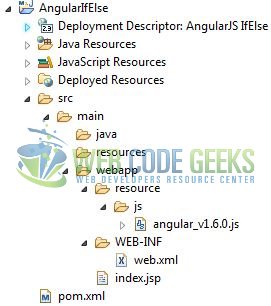
2.2 Project Structure
Firstly, let’s review the final project structure if you are confused about where you should create the corresponding files or folder later!
2.3 Project Creation
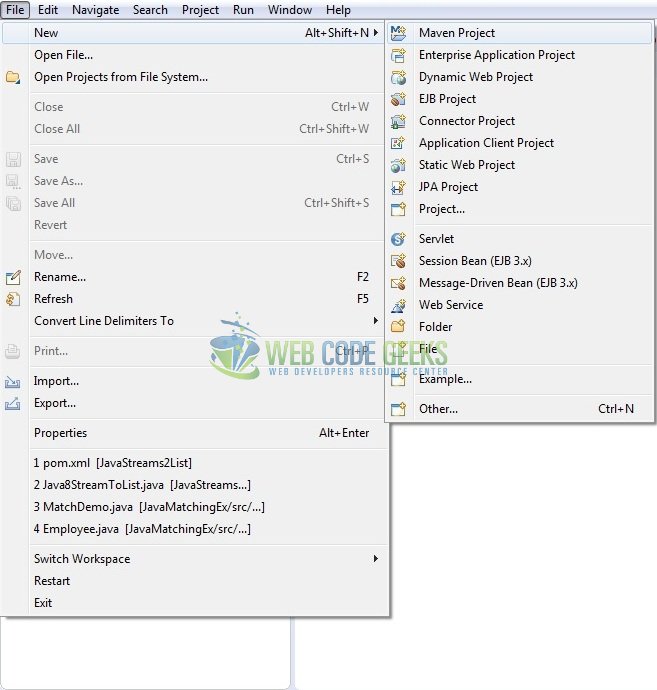
This section will show how to create a Java-based Maven project with Eclipse. In Eclipse Ide, go to File -> New -> Maven Project.
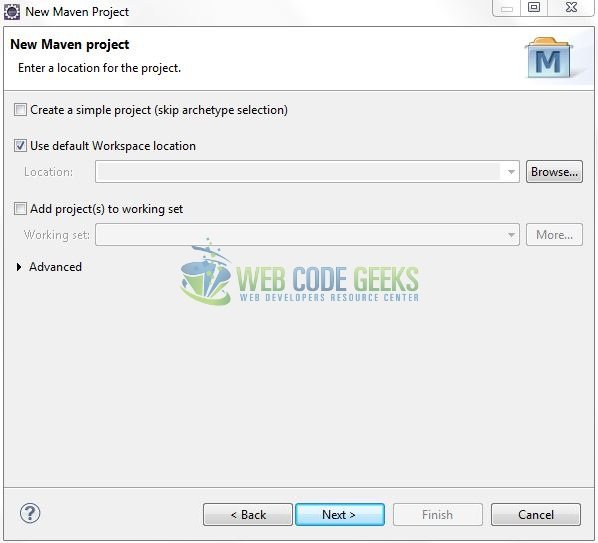
In the New Maven Project window, it will ask you to select project location. By default, ‘Use default workspace location’ will be selected. Just click on next button to proceed.
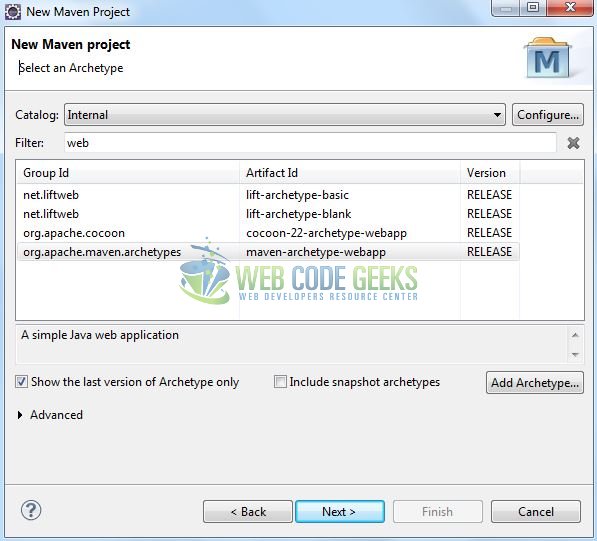
Select the ‘Maven Web App’ Archetype from the list of options and click next.
It will ask you to ‘Enter the group and the artifact id for the project’. We will enter the details as shown in the below image. The version number will be by default: 0.0.1-SNAPSHOT.
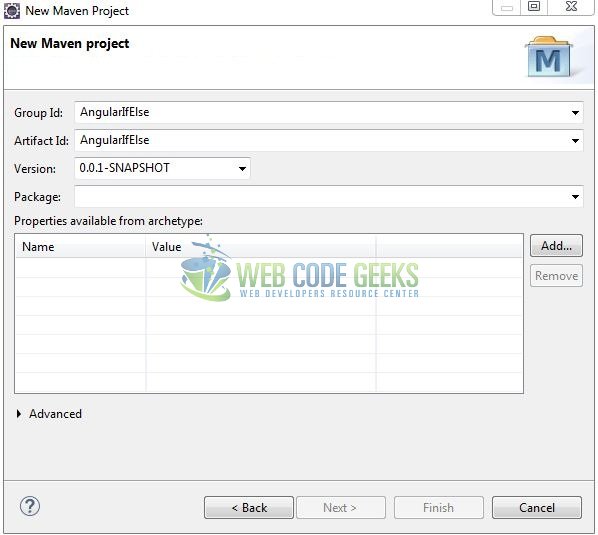
Click on Finish and the creation of a maven project is completed. If you see, it has downloaded the maven dependencies and a pom.xml file will be created. It will have the following code:
pom.xml
<project xmlns="http://maven.apache.org/POM/4.0.0" xmlns:xsi="http://www.w3.org/2001/XMLSchema-instance" xsi:schemaLocation="http://maven.apache.org/POM/4.0.0 http://maven.apache.org/xsd/maven-4.0.0.xsd">
	<modelVersion>4.0.0</modelVersion>
	<groupId>AngularIfElse</groupId>
	<artifactId>AngularIfElse</artifactId>
	<version>0.0.1-SNAPSHOT</version>
	<packaging>war</packaging>
</project>
Let’s start building the application!
3. Application Building
Let’s create an application to understand the basic building blocks of the ng-if directive in the angular library.
3.1 Load the AngularJS framework
Since it is a pure JavaScript framework, we should add its reference using the <script> tag.
<script type="text/javascript" src="resource/js/angular_v1.6.0.js"></script>
3.2 Define the AngularJS application
Next, we will define the angular application using the <ng-app> directive.
index.jsp
<div ng-app = "">
 	.....
</div>
3.3 Define the HTML DOM Structure
The DOM structure consists of a checkbox which if checked will display the output message and if unchecked will not display the output message (i.e. it will completely remove the HTML component). The DOM structure will have the following prototype form:
index.jsp
<div ng-app="">
	<div class="checkbox">
		<input id="checkbox1" type="checkbox" ng-model="checked" ng-init="checked = true">
	</div>

	<div id="output" ng-if="checked">
		<span id="text">Hi... Welcome to the Angular world!</span>
	</div>
</div>
3.4 Complete Application
Complete the above steps and I will show you how to implement the if/else functionality. Let’s see the simple HTML code snippet to understand the usage of ng-if directive in the angular web applications.
index.jsp
<!DOCTYPE html>
<html>
	<head>
	    <meta http-equiv="Content-Type" content="text/html; charset=UTF-8">
	    <title>AngularJS IfElse</title>

	    <!-- AngularJs File -->
	    <script type="text/javascript" src="resource/js/angular_v1.6.0.js"></script>

	    <!-- Bootstrap Css -->
	    <link rel="stylesheet" href="https://maxcdn.bootstrapcdn.com/bootstrap/4.0.0/css/bootstrap.min.css">
	</head>
	<body>
	    <div id="angularIfElse" class="container">
	        <h1 align="center" class="text-primary">AngularJS - If/Else Example</h1>
	        <hr />

	        <!------ AngularJs If/Else Example ------>
	        <div ng-app="">
	            <h3 id="header_msg" class="text-warning">A demo of <em>if/else</em> in Angular JavaScript!</h3>
	            <div> </div>

	            <div class="checkbox">
	                <label class="form-check-label" for="checkbox1">Option 1</label>
	                <input id="checkbox1" type="checkbox" ng-model="checked" ng-init="checked = true">
	            </div>
	            <div> </div>

	            <div id="output" ng-if="checked">
	                <span id="text" class="text-success">Hi... Welcome to the Angular world!</span>
	            </div>
	        </div>
	    </div>
	</body>
</html>
4. Run the Application
As we are ready for all the changes, let us compile the project and deploy the application on the Tomcat7 server. To deploy the application on Tomat7, right-click on the project and navigate to Run as -> Run on Server.
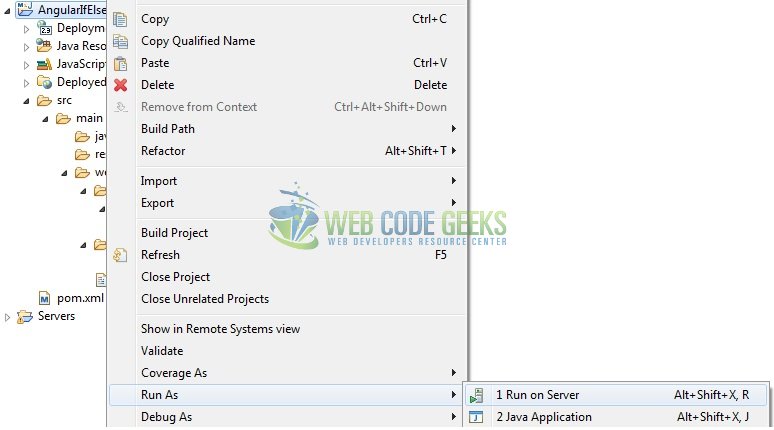
Tomcat will deploy the application in its web-apps folder and shall start its execution to deploy the project so that we can go ahead and test it in the browser.
5. Project Demo
Open your favorite browser and hit the following URL. The output page using the ng-if directive will be displayed.
http://localhost:8080/AngularIfElse/
Server name (localhost) and port (8080) may vary as per your Tomcat configuration.
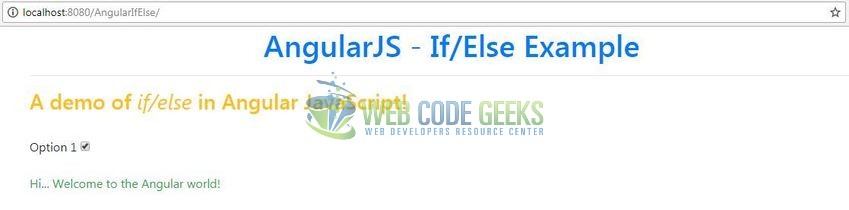
Here, if the checkbox is unchecked, the output message gets hidden (i.e. the HTML component will be removed from the DOM).

6. Conclusion
In this tutorial, developers learned how to create a simple angular application using the ng-if directive. Developers can download the sample application as an Eclipse project in the Downloads section.
7. Download the Eclipse Project
This was a tutorial of the if/else functionality in the angular library.
You can download the full source code of this example here: AngularIfElse